This troubleshooting process guide applies to all Ethernet-based Network devices.
It follows the OSI Model, which are the building blocks of network connectivity.
Most consumer devices use all 7-layers, but Industrial devices will use as little as 3.
For the purposes of this guide, we will stop at layer-4.
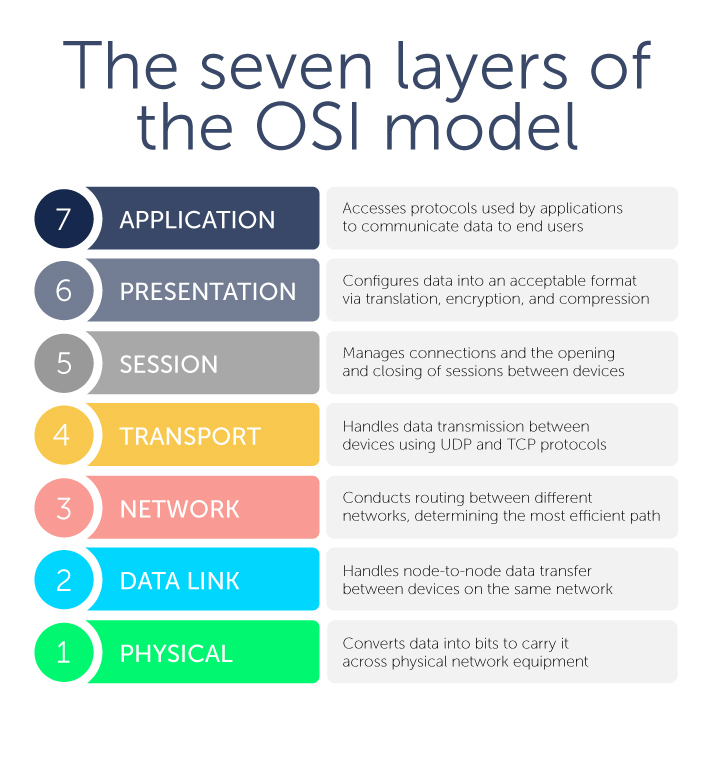
We start with the bottom of the stack first, as those are the simpler and more likely points of failure.
Layer 1 — Physical
Focus: Cables, connectors, power, physical link
- Check link lights
- Verify NIC, switch ports, and intermediate devices show link/activity.
- No light = no physical connection.
- Inspect cabling
- Ensure cables are fully seated.
- Test with known‑good cable.
- Look for damage or kinks.
- Verify power to network devices
- Switches, routers, PoE injectors should be powered.
- If PoE device → check if PoE budget is exhausted.
- Port testing
- Try another Ethernet port on device (if available)
- Try a USB-to-Ethernet adapter (if possible)
- Check for speed/duplex mismatch
- If the switch forces Gigabit but cable is Cat5 (not 5e or higher), issues occur.
Layer 2 — Data Link
Focus: MAC addressing, ARP, switching
- Check NIC status
- Windows PowerShell: Get-NetAdapter

- Confirm if the interface is “Up”
- “Down” = Physically connected to something but not being allowed on the network (i.e. Port has Static IP incompatible with the Gateway)
- Check Switch Settings
- Is there a switch connected between the devices?
- If so, is it Managed?
- Ensure no MAC/IP Address filtering, blocked ports, etc.
- Ensure VLANs are configured correctly
- If not, an unmanaged switch will always broadcast all packets, no filters.
- But it can also cause network storms if a ring/loop is formed
- Detect duplex mismatch
- Slow or intermittent? Duplex and/or Link Speed mismatch is possible.
- Ensure both devices are set for Auto Negotiation
- Note: Emerson PACSystems Ethernet is not user configurable, and is always Auto Negotiation
- Test ARP
- Windows PowerShell or Command Prompt: arp -a
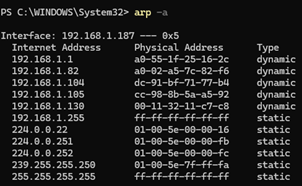
- Look for device
Layer 3 — Network
Focus: IP addresses, routing, subnets
- Verify IP configuration
- Windows PowerShell or Command Prompt: ipconfig
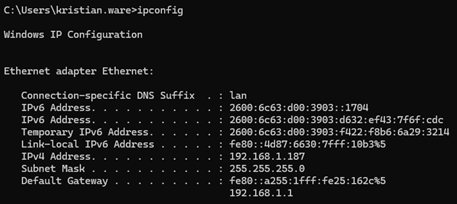
- Check:
- Correct IP?
- Correct subnet mask?
- Correct gateway?
- BOTH devices must be on the same Subnet and have a similar IP
- Check local connectivity
- Ping other devices
- Do other network devices respond, but you can’t reach one of them?
- Check routing table
- Windows Command Prompt: route print
- Ensure default route exists.
Layer 4 — Transport
Focus: TCP/UDP ports, sessions
- Test common ports
- PowerShell: Test-NetConnection -Port <port>
- Check for packet loss
- Command Prompt: pathping <ipaddress>
- Verify if firewall is blocking ports
- Windows Firewall, or physical security appliance
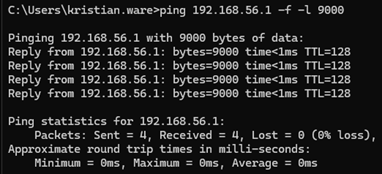
- Check MTU issues
- Jumbo frames mismatches cause silent drops.
- Command Prompt: ping <ipaddress> -f -l <size>
Was this article helpful?
That’s Great!
Thank you for your feedback
Sorry! We couldn't be helpful
Thank you for your feedback
Feedback sent
We appreciate your effort and will try to fix the article